PostgreSQL
PostgreSQL - pgAdmin 4
Use pgAdmin 4 to connect to PostgreSQL, manage databases, and run SQL queries.
postgres user ready. pgAdmin 4 is included with the
standard Windows PostgreSQL installer.
What is pgAdmin 4?
The pgAdmin 4 application comes with the PostgreSQL installation. It provides a user-friendly graphical alternative to the command-based SQL Shell (psql) application for interacting with a PostgreSQL database.
1. Open pgAdmin 4
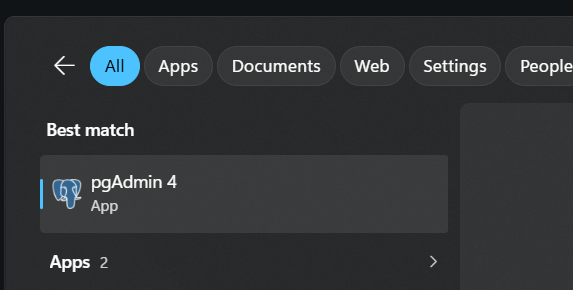
Open the Start menu, search for pgAdmin 4, and launch the application. The first launch may open pgAdmin in a desktop window or in your default web browser.
2. Connect to the PostgreSQL server
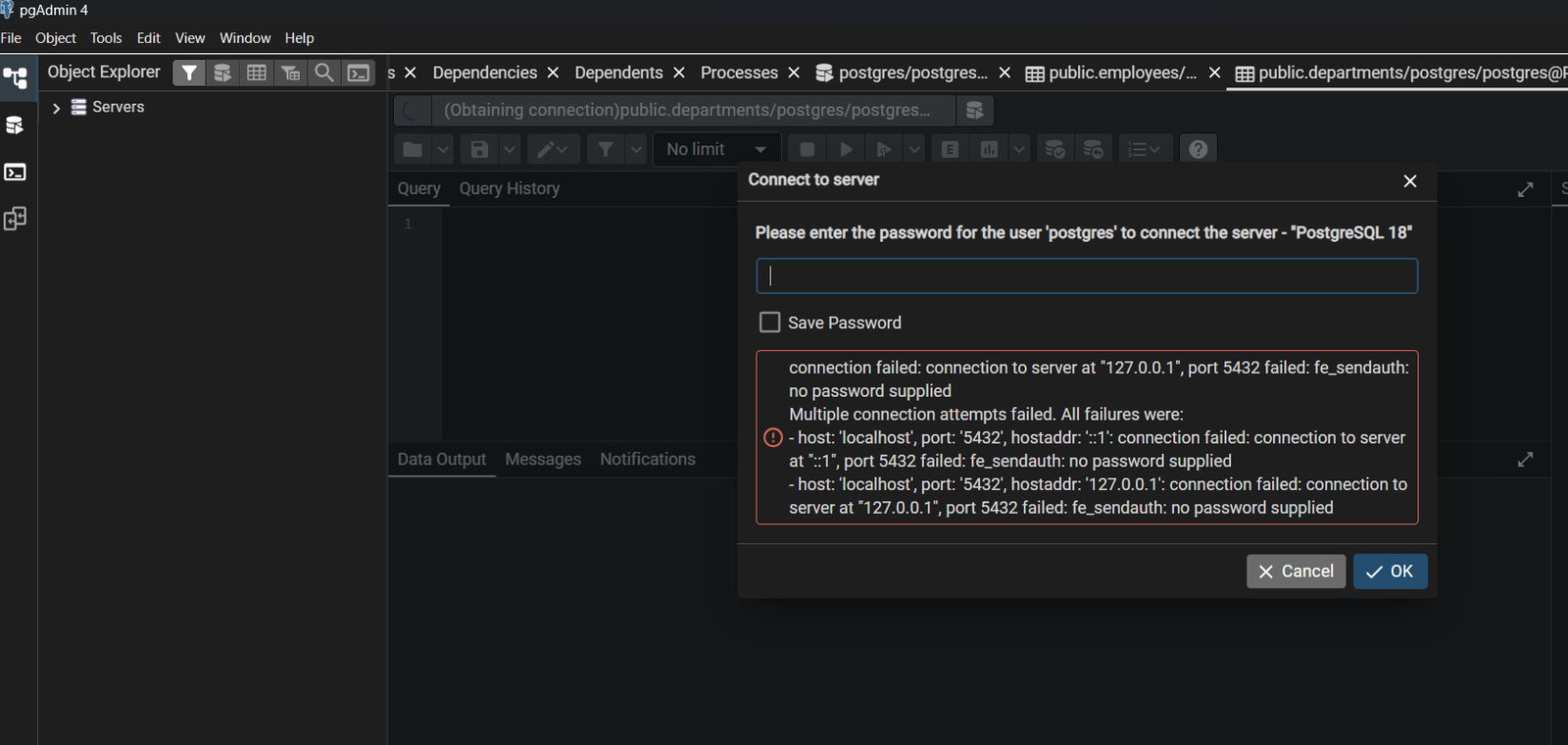
- Expand Servers in the Browser panel.
- Select the PostgreSQL server installed on your computer.
- Enter the password for the
postgresuser. - Select Save password only on a trusted development machine.
A local PostgreSQL connection commonly uses host localhost and
port 5432. Use the port selected during installation if it is different.
3. Create a database
- Expand the connected server.
- Right-click Databases and choose Create > Database.
- Enter a database name, such as
taskdb. - Select the owner and click Save.
4. Run a SQL query
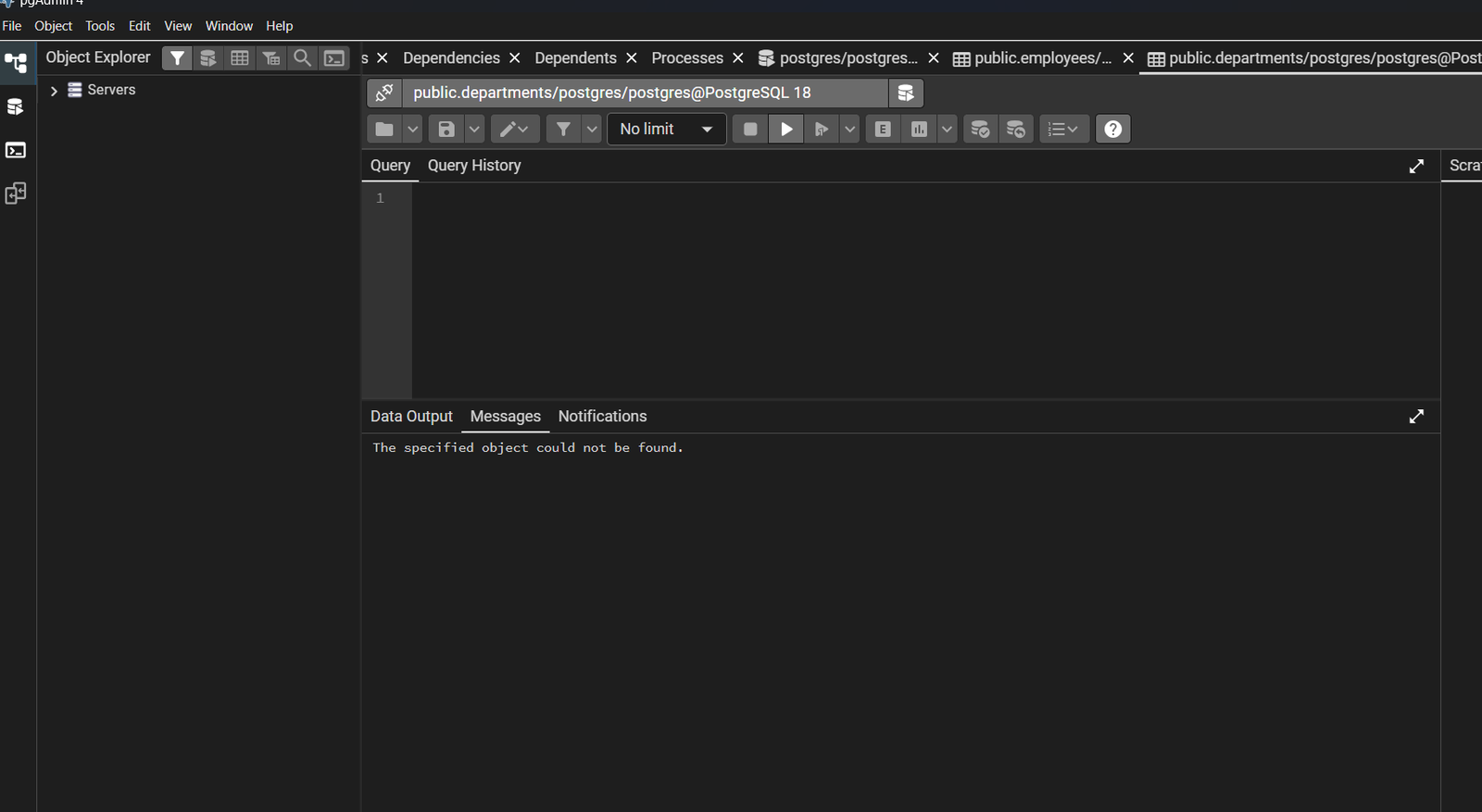
Select the database, open Tools > Query Tool, and run a query such as:
CREATE TABLE tasks (
  id BIGSERIAL PRIMARY KEY,
  title VARCHAR(200) NOT NULL,
  completed BOOLEAN NOT NULL DEFAULT FALSE
);

INSERT INTO tasks (title) VALUES ('Explore pgAdmin 4');

SELECT * FROM tasks;
Use the execute button or press F5 to run the selected SQL.
5. Browse tables and data
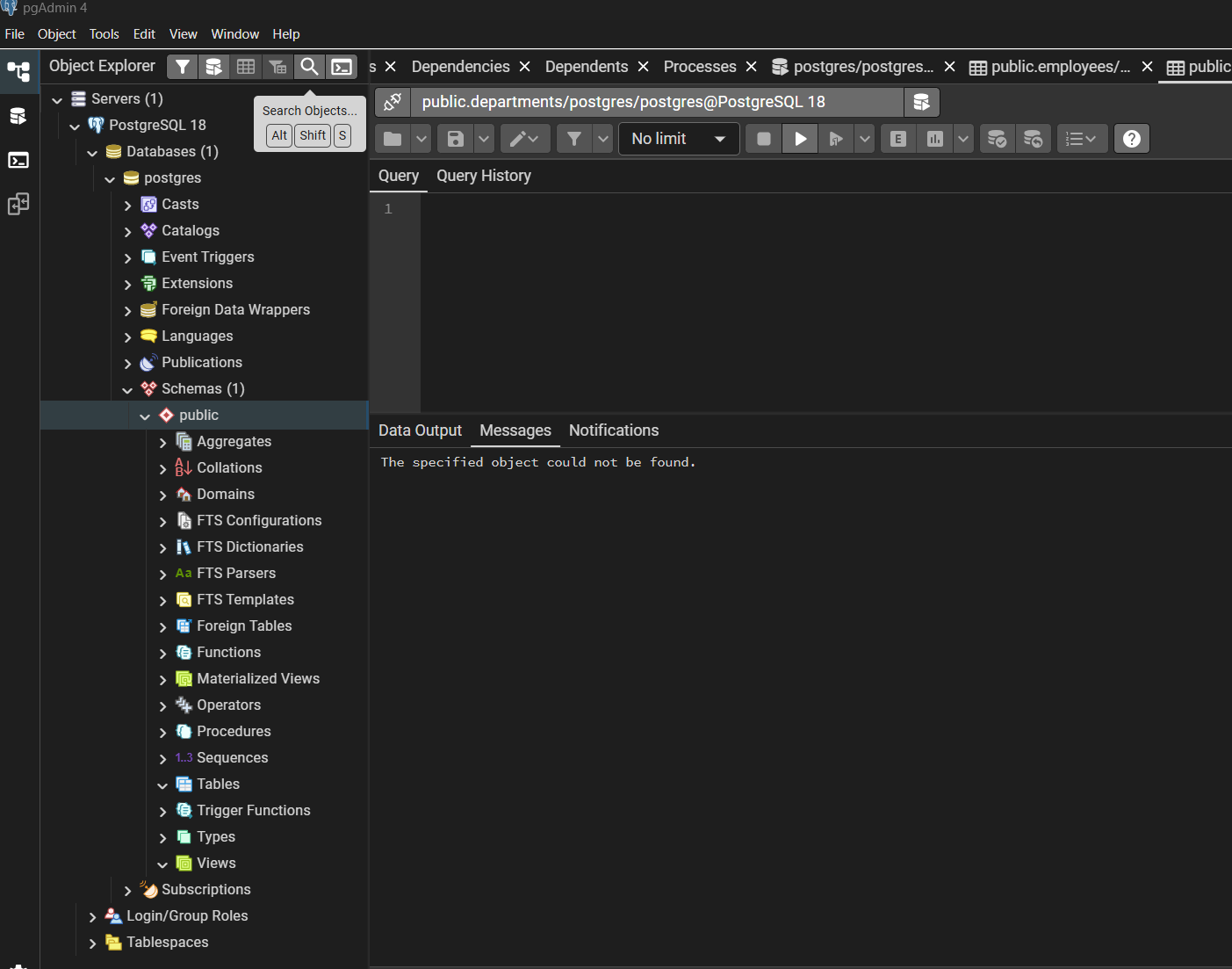
Refresh the database tree, then expand Schemas > public > Tables. Right-click a table and choose View/Edit Data to inspect rows. Use the Query Tool for repeatable changes and application scripts.
pgAdmin 4 best practices
- Use separate roles for applications instead of connecting applications as
postgres. - Prefer migration scripts and version control for schema changes.
- Do not save database passwords on shared or untrusted computers.
- Use transactions when making related data changes.
- Refresh the object tree after creating or changing database objects.