
PostgreSQL
PostgreSQL installation
Install PostgreSQL on Windows using the official PostgreSQL installer.
postgres user.
1. Download PostgreSQL
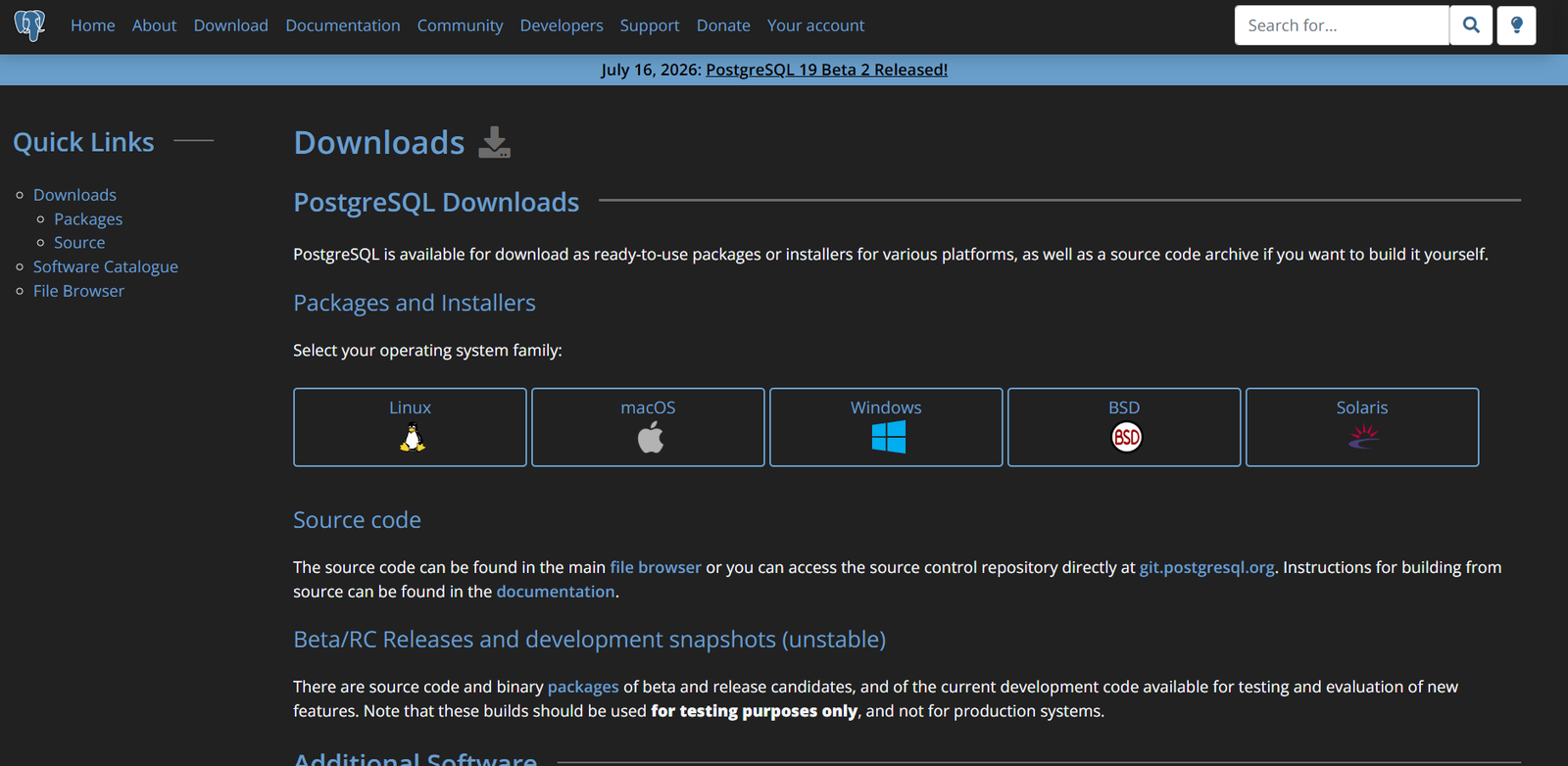
Open the official PostgreSQL download page: postgresql.org/download. Select Windows, then choose Download the installer.
2. Choose the Windows installer
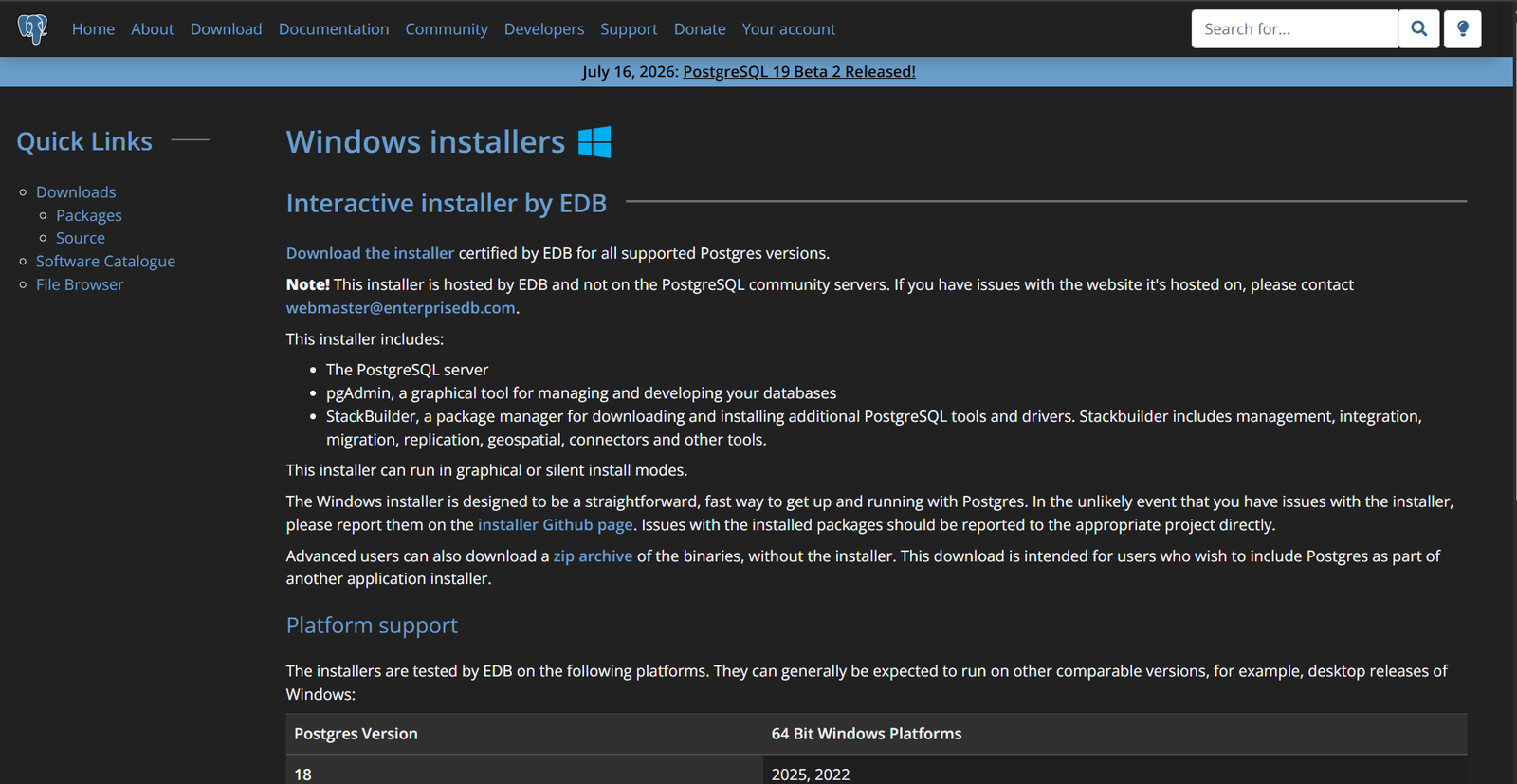
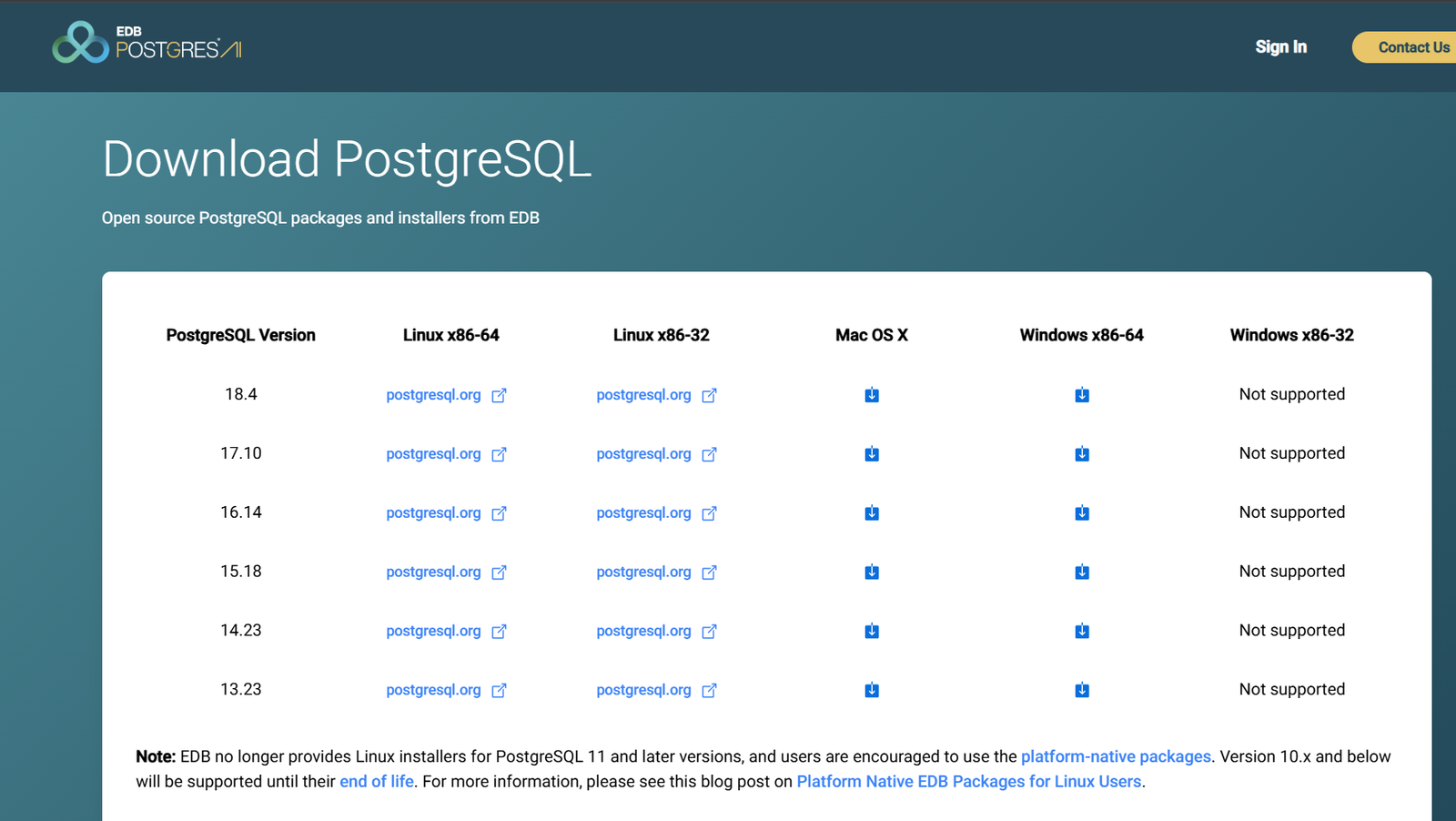
Select the Windows operating system and download the installer provided by EDB.

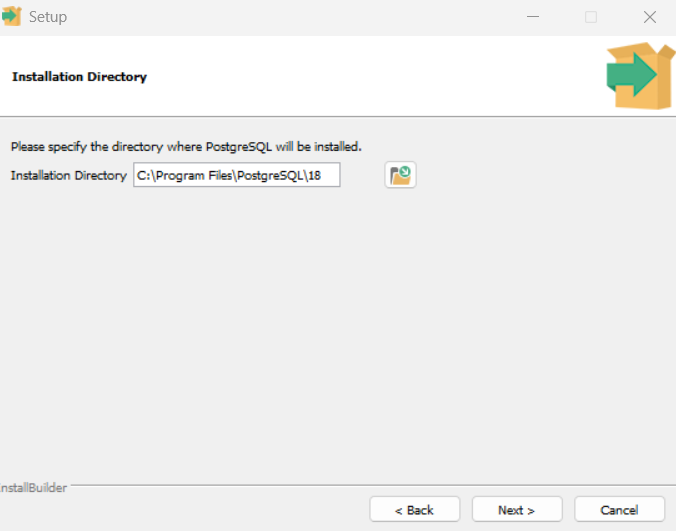
3. Start the installation
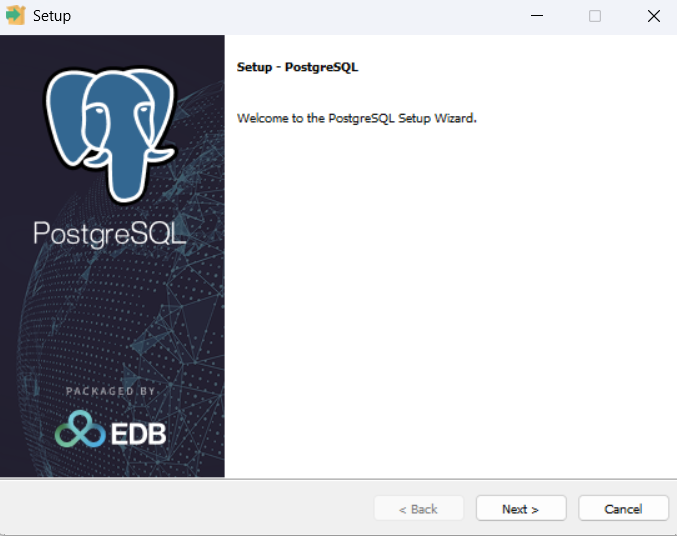
Open the downloaded installer to begin the PostgreSQL setup wizard.
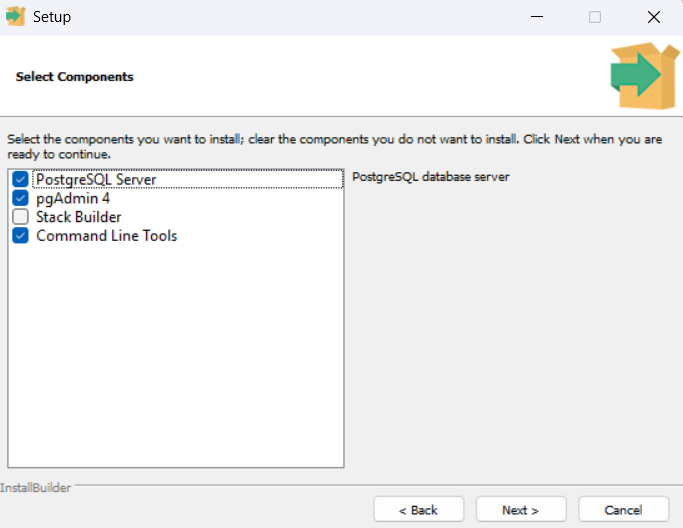
4. Select the components
Select the components you need. The standard setup includes the PostgreSQL server, pgAdmin 4, Stack Builder, and command-line tools. Continue with the default selections unless your project requires a different setup.
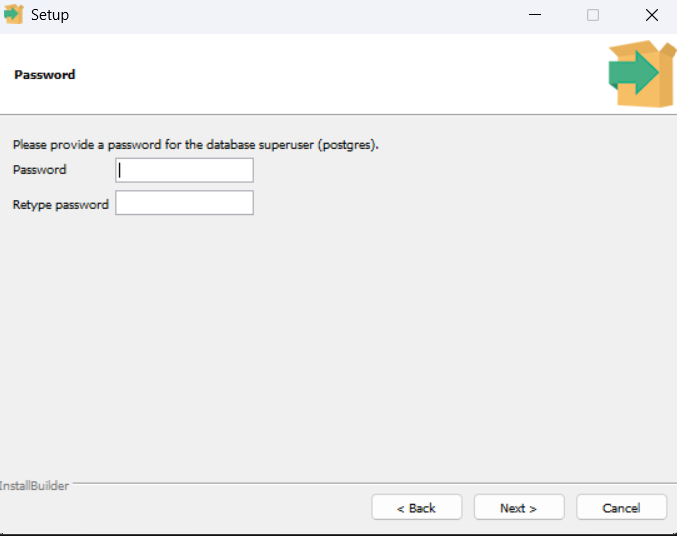
5. Set the database password
Create a strong password for the PostgreSQL superuser. You will use this
password when connecting with the default postgres user.
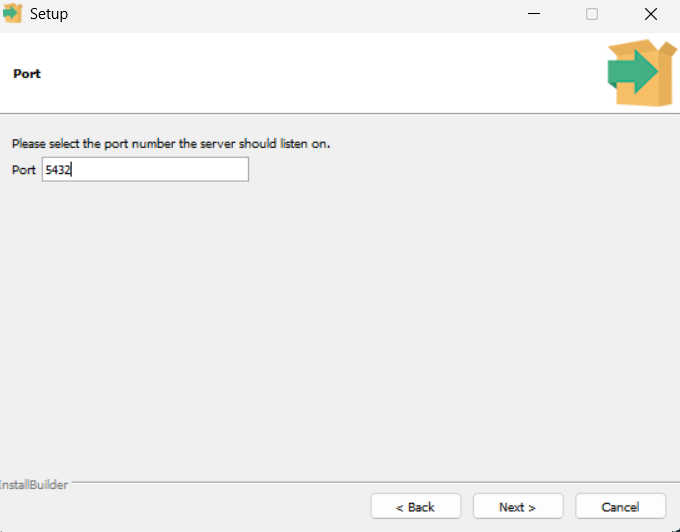
6. Finish the setup
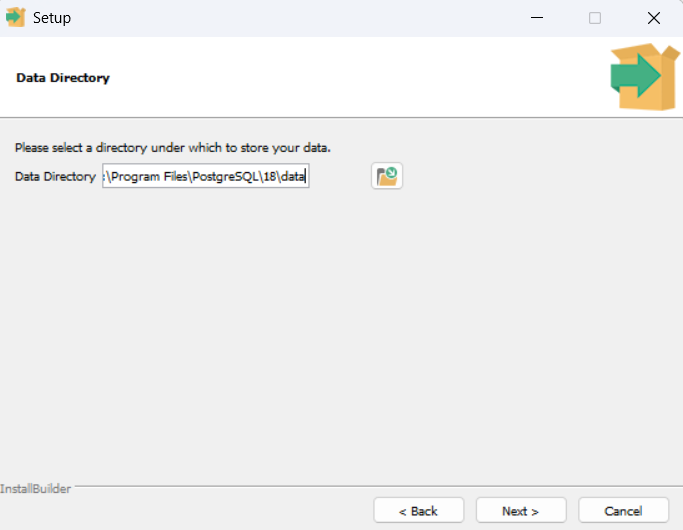
Review the remaining installation settings, accept the default port unless another service already uses it, and start the installation.
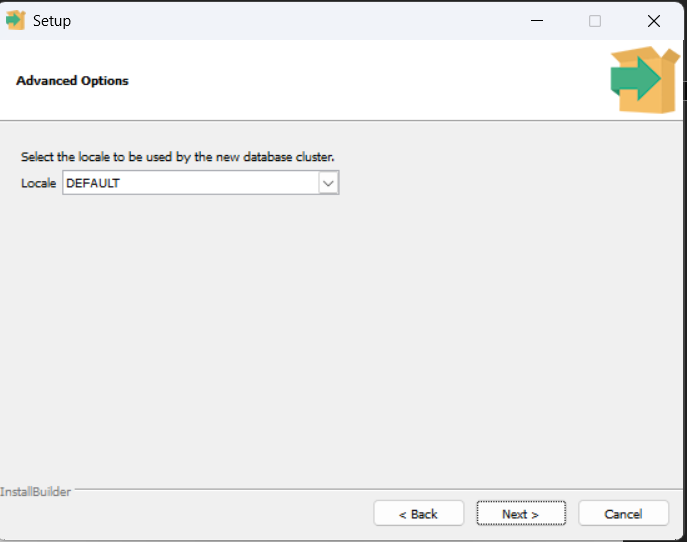
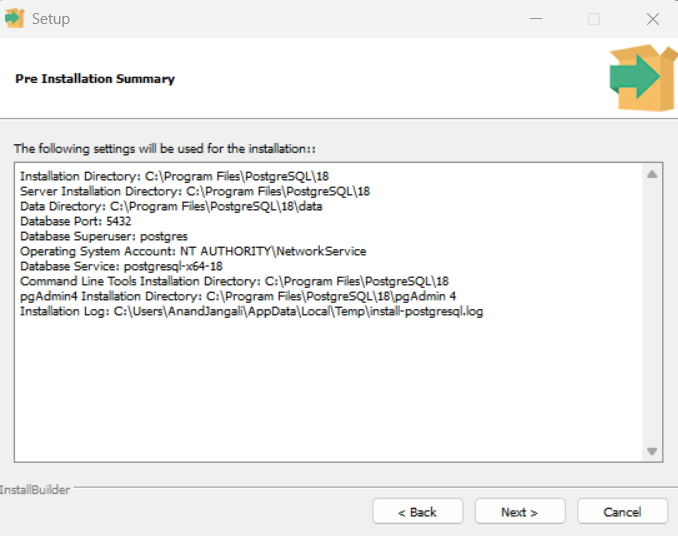
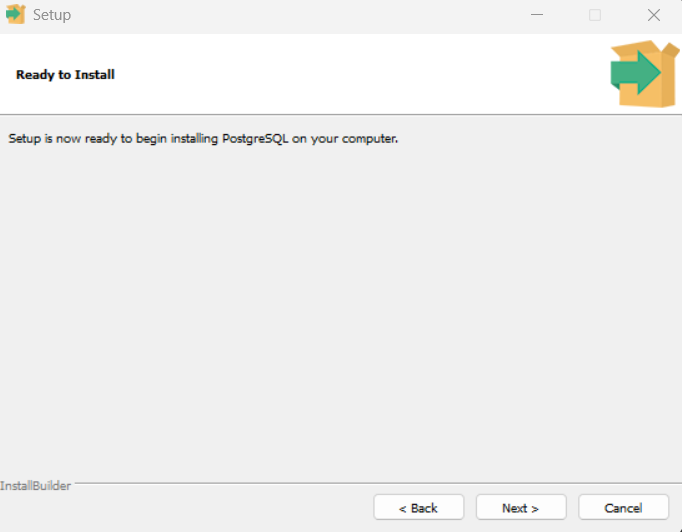
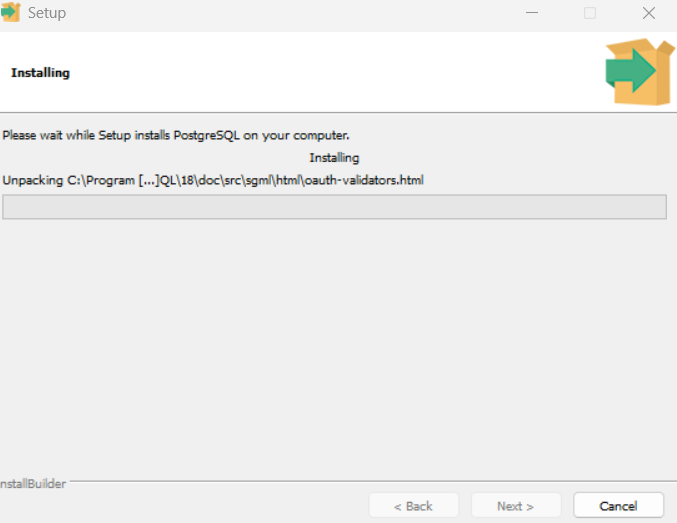
7. After installation
You can now open pgAdmin 4 or use psql to connect to the local
server. Stack Builder is optional and can be used later to add drivers,
extensions, and other PostgreSQL tools.
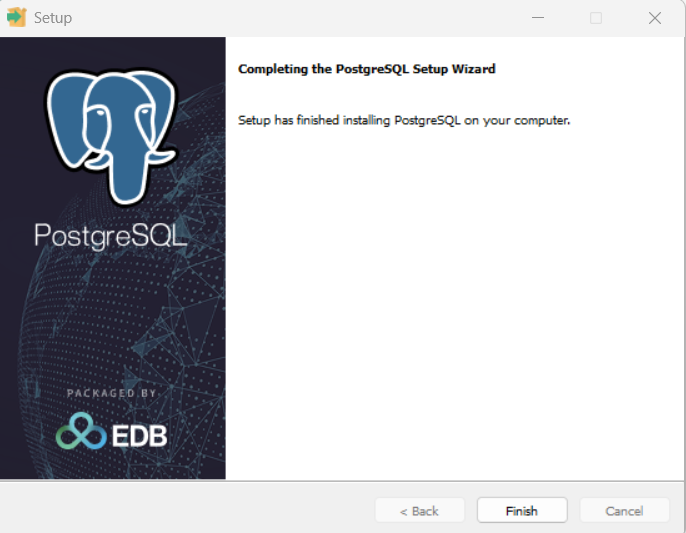
postgres username and the password you created during setup.
Further Reading
Continue learning with these related tutorials:
- PostgreSQL Introduction
- PostgreSQL pgAdmin 4
- PostgreSQL Create Table
- PostgreSQL Insert Data
- PostgreSQL Select Data
- PostgreSQL ADD COLUMN
- PostgreSQL UPDATE
- PostgreSQL ALTER COLUMN
- PostgreSQL DROP COLUMN
- PostgreSQL DELETE
- PostgreSQL DROP TABLE
- PostgreSQL Operators
- PostgreSQL SELECT
- PostgreSQL SELECT DISTINCT
- PostgreSQL WHERE
- PostgreSQL ORDER BY
- PostgreSQL LIMIT
- PostgreSQL MIN and MAX
- PostgreSQL COUNT
- PostgreSQL SUM
- PostgreSQL AVG
- PostgreSQL LIKE
- PostgreSQL IN
- PostgreSQL BETWEEN
- PostgreSQL AS
- PostgreSQL Joins
- PostgreSQL INNER JOIN
- PostgreSQL LEFT JOIN
- PostgreSQL RIGHT JOIN
- PostgreSQL FULL JOIN
- PostgreSQL CROSS JOIN
- PostgreSQL UNION
- PostgreSQL GROUP BY
- PostgreSQL HAVING
- PostgreSQL EXISTS
- PostgreSQL ANY
- PostgreSQL ALL
- PostgreSQL CASE
Continue learning